



モバイルアプリの開発を行う際によく採用される選択肢の一つがFirebaseです。
Firebaseはモバイルアプリの機能を拡充し、開発を効率化するための仕組みを備えています。実際に使う前にローカル環境(エミュレーター)を構築することで、本番環境に影響を与えずに機能を素早く試すことができます。
この記事では、Firebaseのエミュレーターの環境構築から、よく使われるAuthentication・Firestore・Functionsの機能を実際に使ってみるところまでを紹介します。
なお、本記事の動作確認には以下のバージョンを使用しています。
- Node.js: v24.19.0
- npm: v11.17.0
- firebase-tools: v15.34.0
- firebase-functions: v7.0.0
環境構築
コマンドラインから進めるためターミナルを開きます。
以下のコマンドを実行して、作業用フォルダーを作成します。
mkdir my-firebase-app && cd my-firebase-appFirebase CLIを作成したフォルダーにインストールします。
グローバルインストールもできますが、今回はお試しのためローカルのみとします。
npm install --save-dev firebase-toolsローカルインストールの場合、firebase コマンドはPATHに登録されないため、npx 経由で実行します。
npxは対象ディレクトリの node_modules/.bin/ に対象コマンドがあればそれを実行し、無ければレジストリから一時取得して実行する仕組みです。
npx firebase --versionfirebaseにログインします。Googleアカウントが必要になります。
ブラウザが開き、Googleアカウントでの認証を求められます。
npx firebase loginfirebaseの環境を構築します。
npx firebase initいくつか聞かれるので以下に沿って設定していきます。
「Which Firebase features do you want to set up?」では、エミュレーター機能(Emulators)に加えて「Functions」と「Firestore」も一緒に選択します。
- Functionsを選択しないと、Functionsのコードベースが生成されず、起動時に「No valid functions configuration detected」エラーになります。
- Firestoreを選択しないと、
firestore.rulesがfirebase.jsonに紐付かず、ルールが効かず未ログインでも書き込めてしまいます。
「Please select an option」では既存のFirebaseプロジェクトを紐付けることもできますが、この記事ではクイックに試すため「Don’t set up a default project」を選びます。
後半で使う demo- から始まるプロジェクトID(例: demo-no-project)は、実在するFirebaseプロジェクトが無くてもエミュレーターが利用を許可する特別な仮IDです。詳細は公式ドキュメント「Firebase Local Emulator Suiteの概要」を参照してください。
| Which Firebase features do you want to set up? | Functions, Firestore, Emulators (スペースで選択) |
| Please select an option | Don’t set up a default project |
Functionsの設定
| What language would you like to use to write Cloud Functions? | JavaScript |
| Do you want to use ESLint to catch probable bugs and enforce style? | No |
| Do you want to install dependencies with npm now? | Yes |
Firestoreの設定
| What file should be used for Firestore Rules? | firestore.rules(デフォルト) |
| What file should be used for Firestore indexes? | firestore.indexes.json(デフォルト) |
Emulatorsの設定
| Which Firebase emulators do you want to set up? | Authentication Emulator, Firestore Emulator, Functions Emulator |
| Which port do you want to use for the auth emulator? | 9099(デフォルト) |
| Which port do you want to use for the functions emulator? | 5001(デフォルト) |
| Which port do you want to use for the firestore emulator? | 8080(デフォルト) |
| Would you like to enable the Emulator UI? | Yes |
| Which port do you want to use for the Emulator UI | 空Enter(自動割り当て、通常4000) |
| Would you like to download the emulators now? | Yes |
その他
| Would you like to install agent skills for Firebase? | Yes |
firebase initで選択した内容が反映されているか確認します。
cat firebase.json{
"firestore": {
"rules": "firestore.rules"
},
"functions": [
{
"source": "functions",
"codebase": "default",
"disallowLegacyRuntimeConfig": true,
"ignore": [
"node_modules",
".git",
"firebase-debug.log",
"firebase-debug.*.log",
"*.local"
]
}
],
"emulators": {
"auth": {
"port": 9099
},
"functions": {
"port": 5001
},
"firestore": {
"port": 8080
},
"ui": {
"enabled": true
},
"singleProjectMode": true
}
}エミュレーターを起動します。
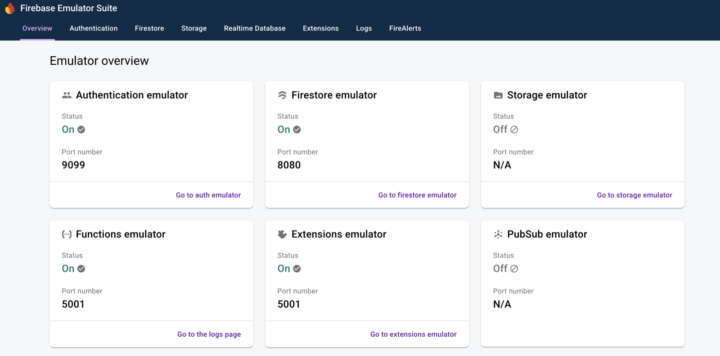
npx firebase emulators:start✔ All emulators ready! It is now safe to connect your app.
i View Emulator UI at http://127.0.0.1:4000http://127.0.0.1:4000 を開けばEmulator UIにアクセスできます。
Authenticationでユーザーを追加・ログインする
Emulator UIからユーザーを追加できますが、ここではコマンドラインから追加し、UIへの反映を確認します。
追加したユーザーはエミュレーター内だけに存在し、本番環境には影響しません。
以下のコマンドを実行し、ユーザーを追加します。
curl -s -X POST \
  "http://127.0.0.1:9099/identitytoolkit.googleapis.com/v1/accounts:signUp?key=fake-api-key" \
  -H "Content-Type: application/json" \
  -d '{"email":"curl-user@example.com","password":"password123","returnSecureToken":true}' | jq
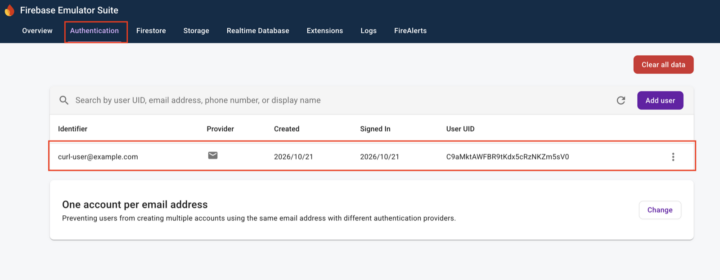
実行すると、UIにもユーザーが追加されているのが確認できます。
次に以下のコマンドを実行し、ログインします。
curl -s -X POST \
  "http://127.0.0.1:9099/identitytoolkit.googleapis.com/v1/accounts:signInWithPassword?key=fake-api-key" \
  -H "Content-Type: application/json" \
  -d '{"email":"curl-user@example.com","password":"password123","returnSecureToken":true}' | jq
成功するとレスポンスが返却されます。
{
  "kind": "identitytoolkit#VerifyPasswordResponse",
  "registered": true,
  "localId": "Dx1WLAtxnnNM28qRWVqZACFIz2bq",
  "email": "curl-user@example.com",
  "idToken": "abcdxxx",
  "refreshToken": "abcdxxx",
  "expiresIn": "3600"
}
これでログインが完了しました。レスポンスに含まれる idToken は、この後Firestoreへ書き込む際に「ログイン済みであること」を証明するために使用します。
Firestoreのセキュリティルールを試す
また、firebaseでは、ログインしたユーザーだけがFirestoreにドキュメントを書き込むこともできます。
最初のfirebase initで「Firestore」も選択済みのため、すでにfirestore.rulesが生成され、firebase.jsonにも紐付けられています。firestore.rulesを開き、ログイン済みのユーザーだけがドキュメントを追加できるルールに書き換えます。
rules_version = '2';
service cloud.firestore {
  match /databases/{database}/documents {
    match /{document=**} {
      allow read: if true;
      allow write: if request.auth != null;
    }
  }
}
Firestore Emulatorはfirestore.rulesの変更を自動で検知するため、エミュレーターを再起動しなくてもルールが反映されます。ルールの詳細な書き方は公式ドキュメント「Cloud Firestore セキュリティ ルールを使ってみる」を参照してください。
Firestoreにドキュメントを追加します。
エミュレーターのベースURLを設定します。
PROJECT_ID="demo-no-project"
BASE_URL="http://127.0.0.1:8080/v1/projects/${PROJECT_ID}/databases/(default)/documents"
先ほどのログインで取得した idToken を変数に入れておきます。
ID_TOKEN="abcdxxx"まずは比較のため、Authorization ヘッダーを付けずに書き込みを試してみます。
curl -s -X PATCH "${BASE_URL}/users/user1" \
  -H "Content-Type: application/json" \
  -d '{"fields": {"name": {"stringValue": "Taro Yamada"}, "age": {"integerValue": "28"}}}' | jq
ルールで allow write: if request.auth != null; としているため、未ログイン扱いとなり PERMISSION_DENIED が返却されます。
次に、idToken を Authorization: Bearer ヘッダーに付けてリクエストします。
curl -s -X PATCH "${BASE_URL}/users/user1" \
  -H "Authorization: Bearer ${ID_TOKEN}" \
  -H "Content-Type: application/json" \
  -d '{"fields": {"name": {"stringValue": "Taro Yamada"}, "age": {"integerValue": "28"}}}' | jq
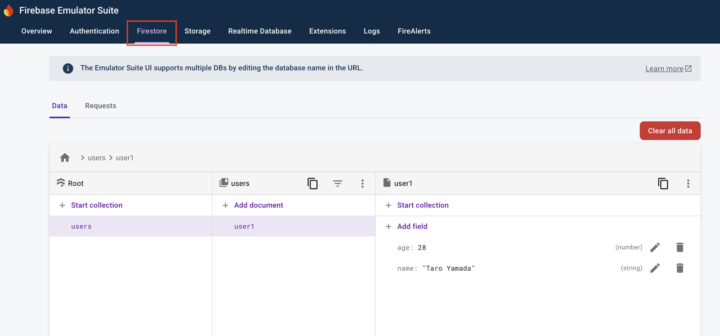
今度は成功し、エミュレーターUIにもドキュメントが表示されました。
Functionsのトリガーを試す
最後に、Firestoreにドキュメントが追加されたタイミングで簡単な処理を実行するFunctionsを試します。
firebase initで「Functions」を選択済みのため、すでにfunctions/ディレクトリにサンプルコードが生成されています。functions/index.jsを開き、サンプルコードを以下のように書き換えます。Firestoreの users コレクションにドキュメントが作成されたタイミングで発火する関数です。
const {onDocumentCreated} = require("firebase-functions/v2/firestore");
const logger = require("firebase-functions/logger");

exports.onUserCreated = onDocumentCreated("users/{userId}", (event) => {
  const data = event.data.data();
  logger.info(`New user created: ${event.params.userId}`, data);
});
Functions Emulatorもfunctions/ディレクトリの変更を自動で検知するため、エミュレーターを再起動しなくてもコードが反映されます。Firestoreトリガーの詳細は公式ドキュメント「Cloud Firestore トリガー」を参照してください。
再度、ログイン済みユーザーとしてFirestoreにドキュメントを追加します。
curl -s -X PATCH "${BASE_URL}/users/user2" \
  -H "Authorization: Bearer ${ID_TOKEN}" \
  -H "Content-Type: application/json" \
  -d '{"fields": {"name": {"stringValue": "Hanako Sato"}, "age": {"integerValue": "24"}}}' | jq
Emulator UIの「Logs」タブを開くと、Functionsが発火したことを示すログが確認できます。
I  function[us-central1-onUserCreated]  Beginning execution of "us-central1-onUserCreated"
I  function[us-central1-onUserCreated]  {
  "name": "Hanako Sato",
  "age": 24,
  "severity": "INFO",
  "message": "New user created: user2"
}
I  function[us-central1-onUserCreated]  Finished "us-central1-onUserCreated" in 5.211833ms
ドキュメントの追加をトリガーにFunctionsが実行され、追加された name と age がログに出力されていることがわかります。
FirestoreはモバイルアプリだけでなくWebアプリにも簡単に組み込むことができます。今回はエミュレーターの紹介でしたが、次回は実際のアプリとFirestoreを連携する方法を紹介していきます。





 簡単30秒
簡単30秒